
TL;DR
Duplicate an existing Zoom Event, update the training details, speaker information, branding, and recording settings, then publish the event. Add the Zoom link into the Kajabi course and post the completed Zoom link in the Monday board comments tagging Marketing (currently Raquel).
Full Instructions
This workflow is used when setting up a Zoom event for an upcoming training. The Zoom link must be created through Zoom Events, added into the Kajabi course, and communicated internally to Marketing so the link can be included in customer emails and communications.
Begin by logging into the Advanced Training Zoom account if the training is anything other than Basic Training. The quickest way to access Zoom Events is by opening and editing an existing event, which will bring you into the Zoom Events hub. From there, navigate to “My Events.”
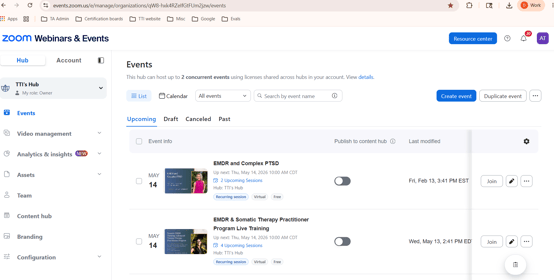
Rather than building a Zoom event from scratch, duplicate an existing event by selecting any current Zoom Event and clicking “Duplicate.” It is generally easiest to duplicate all settings and then edit the information afterward.
Be sure to duplicate from a Single Session for one day courses and from a Recurring Session if a multiple day course.
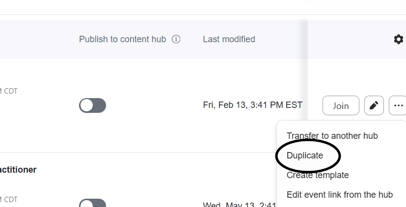
Next, rename the event using the official training title. All necessary information—including the course title, trainer information, and scheduling details—can be found on the Upcoming Training Board in Monday.com or in the Course Info Submission Form submitted via Jotform or Fillout (see picture below)
Set the correct event date and time using the Event Calendar in Monday.com. Use the Table View for easier visibility of training dates and times. All trainings should remain in Central Time and capacity should always stay set to 500 participants.
Once duplicated, go section by section through the Zoom Event settings. Update the training title, confirm the event is marked as virtual, and set the session length appropriately. Note that these are in Central Time or whatever time zone displays for you, make sure it aligns with Central Times.
Update the training image using the correct event graphic provided by Marketing. The Canva link or downloaded graphic can usually be found in the Upcoming Training Board tasks or under this link on Canva. Upload the updated image into the Zoom Event configuration section and save the changes.
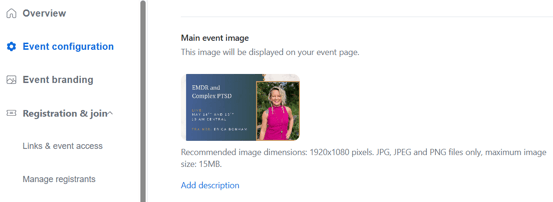
The registration and lobby settings are generally preset and do not require changes, but verify that the correct lobby image is displaying.
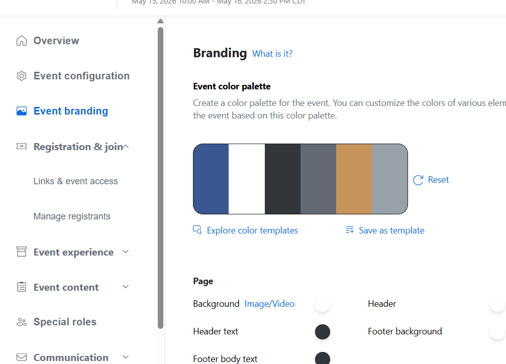
Next, customize the speaker information. Add the trainer as a speaker using their name and email address. Their email, bio, and photo can be found either on the course Monday board or in the Course Info Submission Form. Once added, make sure the trainer is marked as both “Featured” and “Visible,” otherwise the speaker will not display correctly.
For the “About This Session” section, copy a short description from the course page on the website if available. This does not need to be overly detailed—just enough information to describe the training.
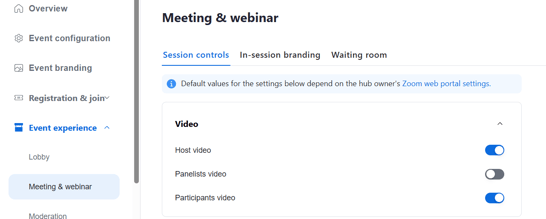
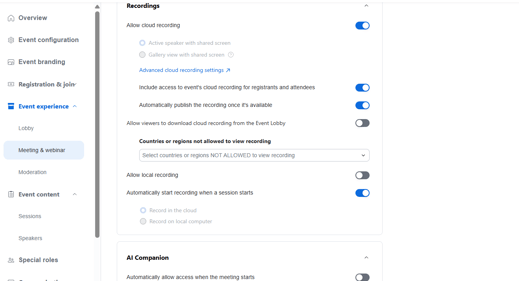
Review the meeting settings carefully. Host and participant video should remain turned on. Cloud recording and automatic recording should both be enabled. These settings are important and should always be verified before publishing the event.
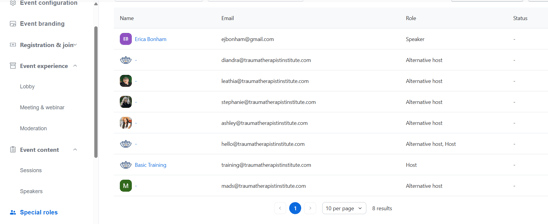
Under host settings, add the trainer as an Alternate Host/Special Roles (not a session editor). This will automatically send the trainer the Zoom link and calendar invitation once the event is published. Also add Stephanie, Ashley, Mads, and the assigned TA as alternate hosts. If you are the TA, include your own email address as well.
Most remaining sections—including communication, integrations, moderators, and post-event settings—can remain unchanged because the event was duplicated from an existing template. Before publishing, quickly verify that only the intended trainer appears as the speaker and that all settings look correct.
Once the Zoom Event is published, add the Zoom link into the Kajabi course. Detailed course-building instructions are covered in separate workflows, but ensure the Zoom link is visible in the appropriate lesson or training area before finishing.
Finally, return to the Monday board and post the completed Zoom link in the comments section of the relevant task. Tag Marketing—currently Raquel—so they know the Zoom setup is complete and can include the link in customer emails and communications.
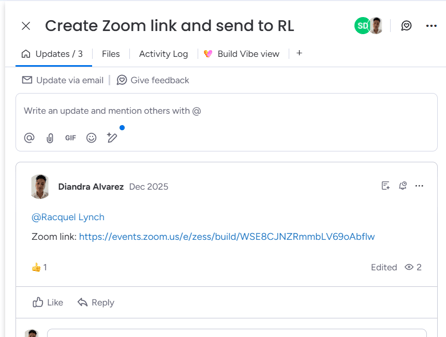
Before closing the task, verify that the Zoom link works correctly, the trainer has been added properly, recording settings are enabled, and Marketing has been tagged successfully.
For any further clarification, please contact Mads Klemm.