
TL;DR
Check if the customer has already used their CEs in the CE Tracker on Monday.com. If not, add them to the tracker and log how many CEs they are using. Then go to their Kajabi profile, add a note with the selected courses, and grant access to each course using the correct offer (avoid “Checkout Bonus” versions). If the request exceeds 12 CEs, pause and initiate invoicing before proceeding.
Full instructions
This workflow is used when a customer in the CIT (Certified Instructor Training) or Certification program requests to use their included Continuing Education credits (CEs) toward advanced courses. Both programs include 12 CEs, which can be redeemed by submitting a course selection form. These may also be referred to as CEUs (Continuing Education Units), which are the same thing.
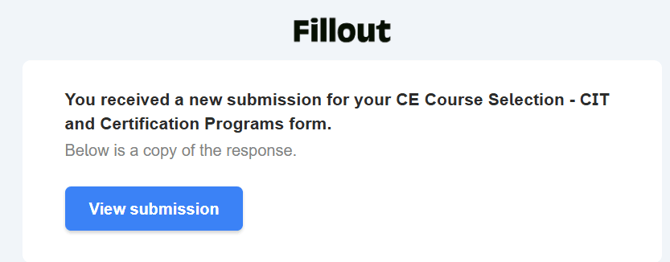
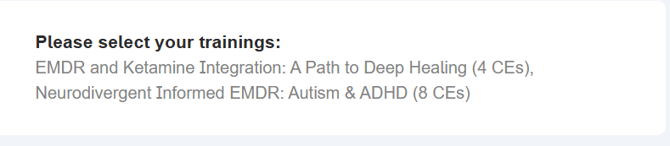
When a request comes in, open the ticket and review the submission to confirm how many CEs the customer is requesting to use and which courses they selected. If the request exceeds 12 CEs, additional invoicing will be required before proceeding.
Monday:
Next, navigate to the CE Tracker board in Monday.com (linked here). From the workspace, go to the Customer Service section and open the CE Tracker board. Search the customer’s name to check whether they have already used any of their CEs.
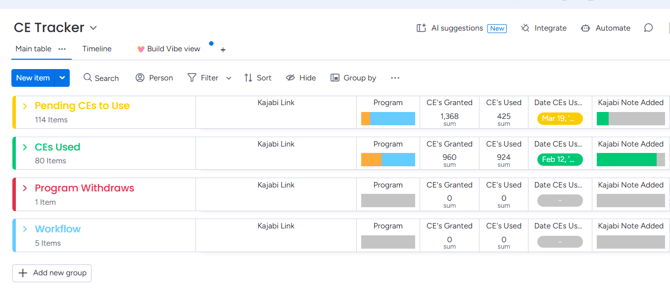
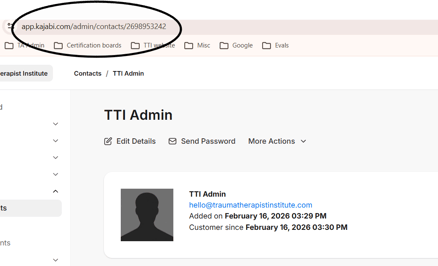
If the customer is not already listed, add them to the CEs Used [green] (if using all 12 CEs) or the Pending CEs to Use [yellow] (if using less than 12 CEs) section of the board. Enter their name, confirm whether they are in the CIT or Certification program by looking at their Kajabi or Monday profile, and document how many CEs they were granted (max of 12 for EMDR Certification and CIT programs), and how many they are using in this request. Include the current date for tracking purposes. In addition, include the customer's Kajabi profile link available right after opening the customer's contact card.

Kajabi:
After updating the tracker, go to the customer’s record in Kajabi. Navigate to Contacts, search for the customer using their email, and open their profile. Add a note to their account that includes the date and the courses they requested.
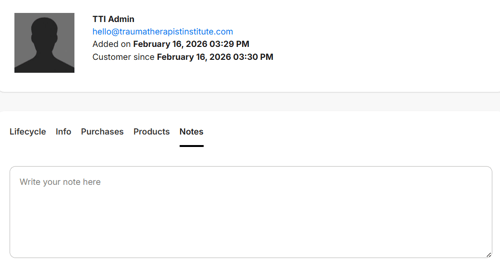
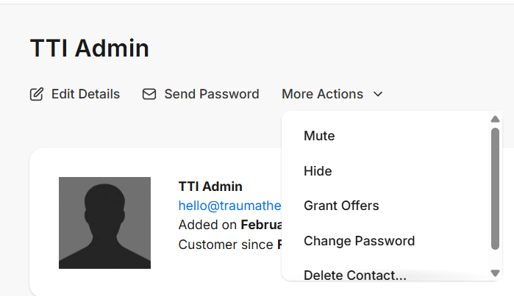
Once the note is added, grant the customer access to the requested courses. In their Kajabi profile, select “More Actions” and then “Grant Offers.” Search for each course individually and select the correct offer. Be careful to choose the version of the course that does not include labels like “Checkout Bonus Offer,” as those are not the correct access points.
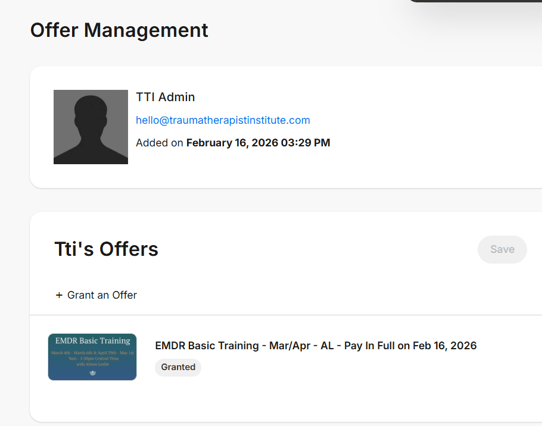
Repeat this process for each course the customer selected. After granting access, return to the customer’s profile to confirm that all courses appear correctly in their account.
**Important note: DO NOT proceed with granting courses if CE purchase is over 12. Inform customer promptly, and invoice ($35 per extra CE). Grant courses once invoice is paid**
Email:
Email customer letting them know of their course selection process completed (verbiage available in Templates)
For any further clarification, please contact Stephanie Dennis or Mads.